
Case Study: Multi Location Woocommerce Store
Scalable Multi-Location WooCommerce Store Management
Using WooCommerce on WordPress Multisite, supported by NS Cloner, Forminator, and custom development, we built a high-performance multi-store eCommerce ecosystem that automated store creation, streamlined location-based communication, integrated custom Google Maps, and introduced dynamic store-specific features.


About the Client
The client is a national online grocery marketplace offering multi-location order fulfillment and in-store pickup services. With expanding demand and plans for aggressive growth, they required a robust multi-store WooCommerce infrastructure that could maintain consistency while allowing store-specific customization.
Business Challenges & Objectives
The retailer needed a scalable multi-location eCommerce solution with:
They needed a way to quickly spin up new WooCommerce stores while inheriting all configurations, minimizing manual setup efforts.

Customer inquiries needed to be routed automatically to the correct store manager based on location selection.
Every store required an individual interactive map to help users identify the closest location.

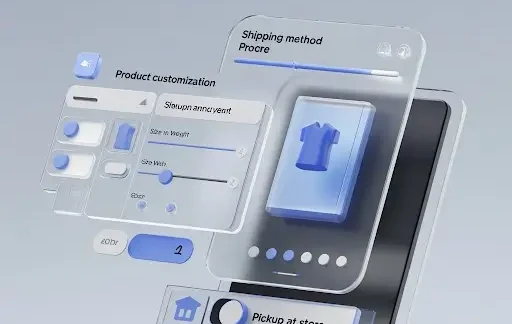
Key UX requirements included:
- Dynamic category loading per store
- Product customization such as size and weight
- Location-specific shipping options such as Pickup at Store
These challenges required a scalable, centralized management system without compromising flexibility for individual store locations.
Want the full access to the Case Study?
We just need a few details first and you’ll get unlimited access to all case studies.
Solution Overview
To address these challenges, we used a combination of WooCommerce (on WordPress Multisite) for managing multiple stores, custom functionality implemented in the theme’s functions.php, and third-party plugins such as NS Cloner and Forminator. The following sections describe how each feature was implemented and the impact it had.
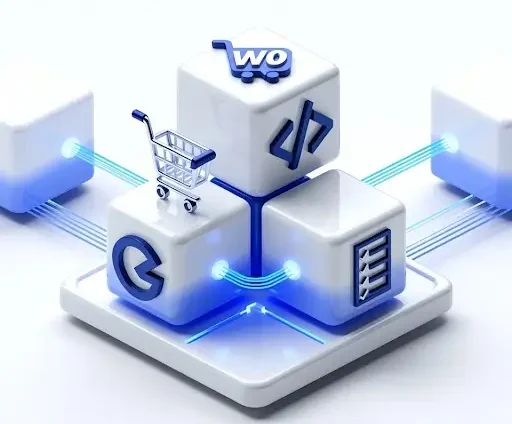
Feature 1: Streamlined Store Creation Using WordPress Multisite & NS Cloner
The main challenge was to efficiently create new stores without duplicating effort for each new store setup. We leveraged WooCommerce running on WordPress Multisite, combined with the NS Cloner plugin, to clone existing stores, inheriting their configurations and minimizing manual input.
How It Worked:
1. WooCommerce Multisite Setup
We configured WordPress Multisite to manage multiple WooCommerce stores (subsites) from a single dashboard. By modifying the wp-config.php file with custom code, we enabled Multisite functionality, allowing us to set up and manage individual e-commerce stores under one umbrella.
2. Store Duplication with NS Cloner
Using the NS Cloner plugin, the admin could clone an existing store’s configurations, including theme settings, plugins, user roles, and more. This:
- Reduced manual work
- Ensured consistency
- Enabled faster expansion
3. Store-Specific Adjustments
After cloning the store, the admin accessed the individual store’s dashboard, updated the email templates to reflect store-specific information (such as contact details and branding), and added the new store to the main location page and navigation menus in multiple languages.

Business Impact:
90% Reduction in new store setup time
30% fewer manual configuration tasks per store
100% consistency across store design and functionality
Feature 2: Location-Based Email Routing for Store Managers
How It Worked:
1. Custom Forms with Forminator
Using Forminator, the admin created custom inquiry forms for each store. Each form included an option for customers to select the store they were inquiring about, which was essential for routing the emails correctly.
2. Email Routing Configuration
For each form, the admin configured the email notification settings within Forminator to send submissions to the corresponding store manager’s email address. The location-specific email rules were set up under the Recipients tab in the Forminator plugin, ensuring that inquiries were sent to the correct recipient based on the store selection.
3. Improved Communication
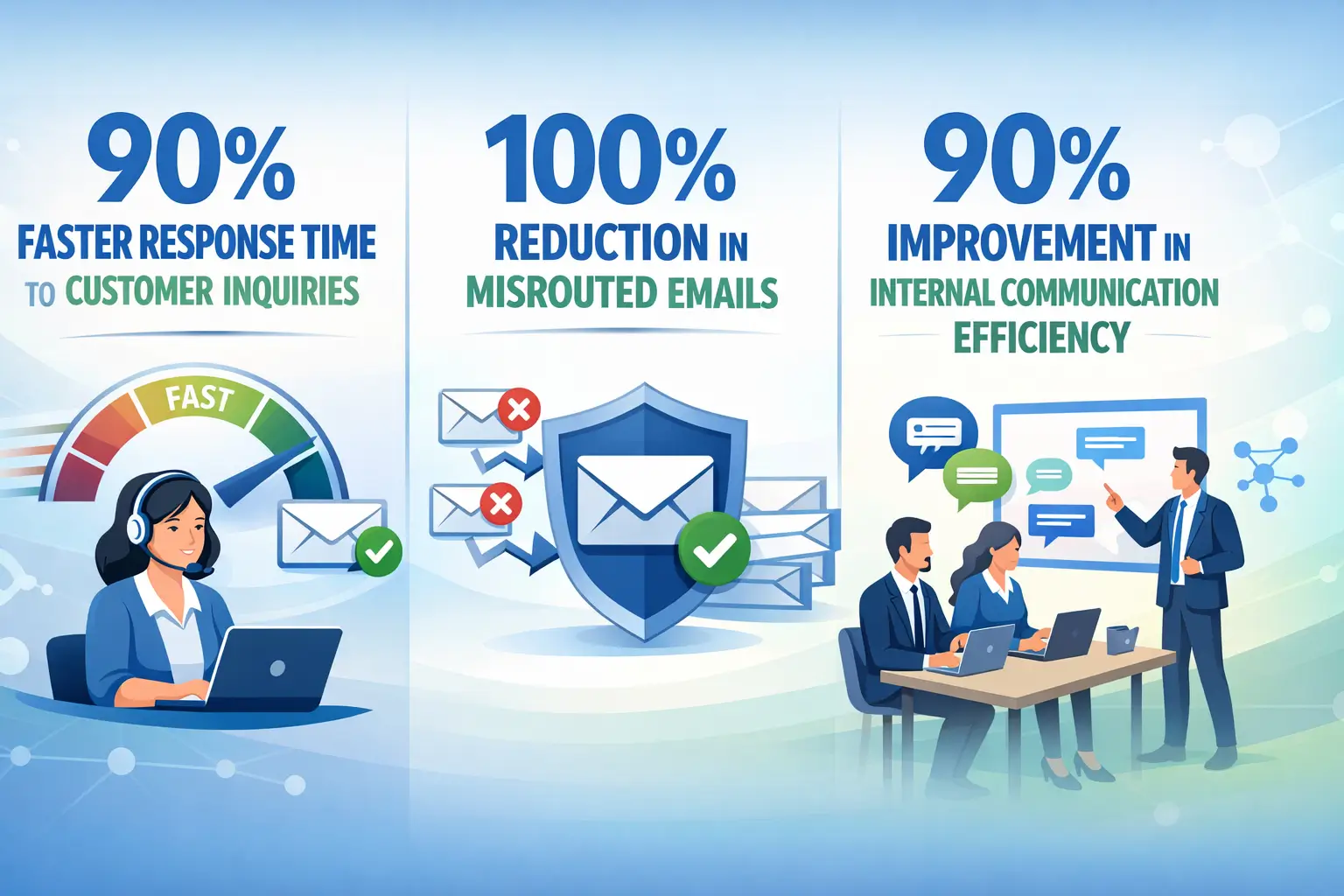
Business Impact:
90% faster response time to customer inquiries
100% reduction in misrouted emails
90% improvement in internal communication efficiency
Feature 3: Custom Google Maps for Each Store Location
To enhance the user experience and help customers find the nearest store, we integrated Google My Maps to display an interactive, custom map for each store location.
How It Worked:
1. Custom Maps Creation
The admin logged into Google My Maps and created custom maps for each store. These maps included specific store information such as the store’s exact location, hours of operation, and special promotions.
2. Embedding Maps on Store Pages
Each store’s location page on the WordPress site included an embedded Google Map, allowing customers to easily navigate to the store. The map was interactive, allowing users to zoom in on the store’s location and get directions.
3. Improved Communication
Customers could visually identify the store’s location, enhancing their shopping experience and making it easier for them to visit the store in person. This feature also reduced the need for customers to search for store locations on external platforms.
Feature 4: Dynamic Store Features (Product Customization, Pickup at Store, etc.)
How It Worked:
1. Product Customization
Custom fields were added to the product pages to allow store admins to specify product weight (EA/LB) and size. The functions.php file was used to create custom fields for each product:
- Added options for weight and size during product creation.
- Implemented logic to display the correct weight unit based on the product type.
3. Pickup at Store Feature
Based on the customer’s selected store location, the Pickup at Store option was displayed during checkout. This was achieved by dynamically updating the shipping options to reflect the availability of in-store pickup.
2. Dynamic Category Loading
The header menu dynamically loaded the list of categories based on the selected store location. This was achieved by implementing the custom_store_category_load_func function, which adjusted the displayed categories in the header menu according to the store the customer was browsing.
4. Phone Number in User Profile
The admin required users to provide a phone number on the account page. We implemented functionality to display and save the phone number in the user profile using the following functions:
- save_phone_on_login: Save the phone number when the user logs in.
- prefill_phone_in_edit_account: Display the phone number when the user edits their account.
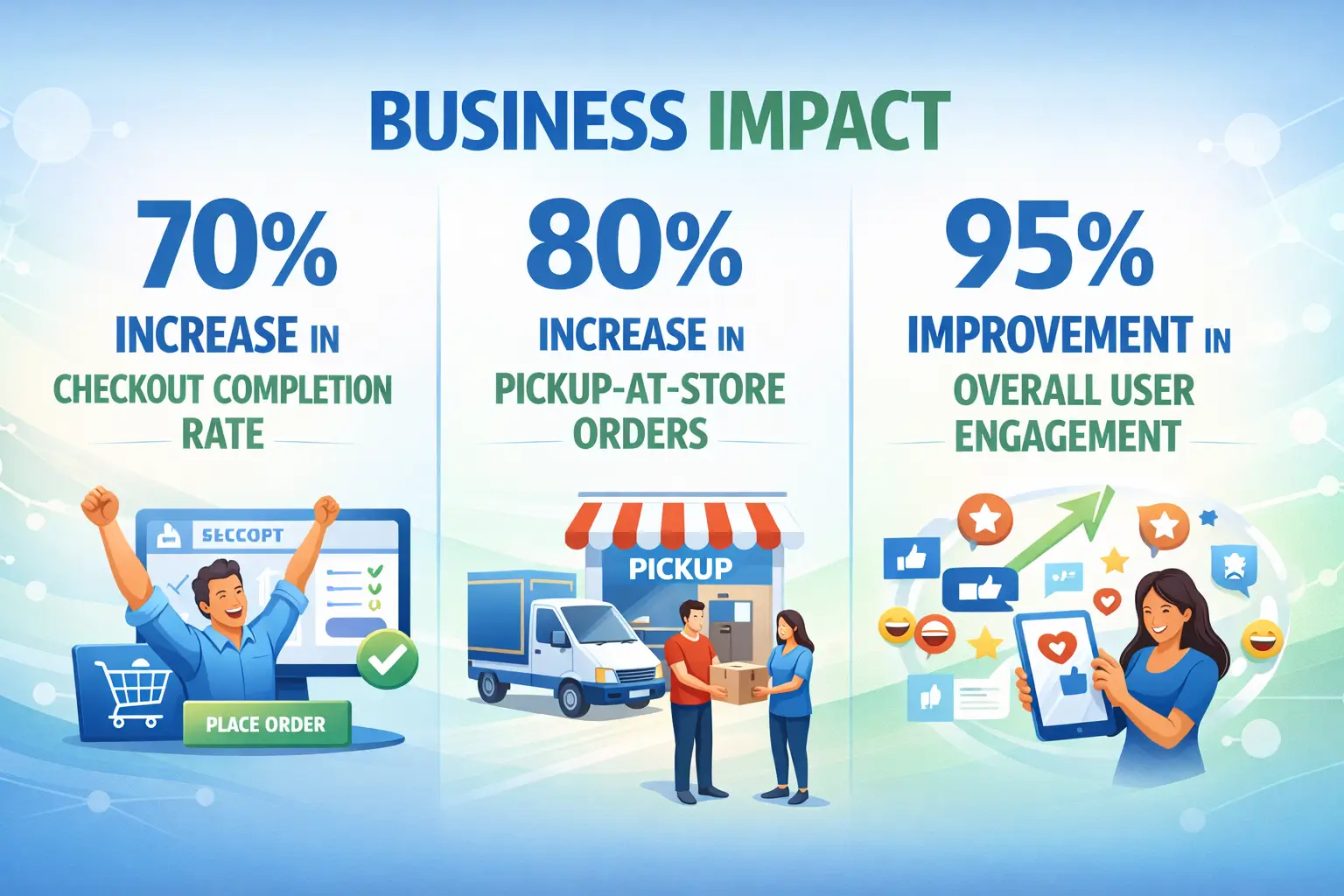
Business Impact:
Key Achievements & Business Benefits
Efficient Store Setup:
By using NS Cloner, the store creation process was simplified, allowing the admin to quickly create new stores while retaining all relevant configurations. This reduced the time and effort required for store setup.
Improved Communication:
The location-based email routing ensured that each store manager received only relevant customer inquiries, improving response times and overall communication efficiency.